Gradient Scanner
Vol. I, Gradient Scanner

CSS gradients, extracted and explained.

An editorial journal on CSS gradient syntax, design-to-code workflow, and front-end performance. Three practitioner pieces on converting mockups, replacing image assets, and mastering gradient syntax.

Abstract CSS gradient visualization
No.01WORKFLOWApril 12, 2026

01-convert-image-mockups-to-css-gradients

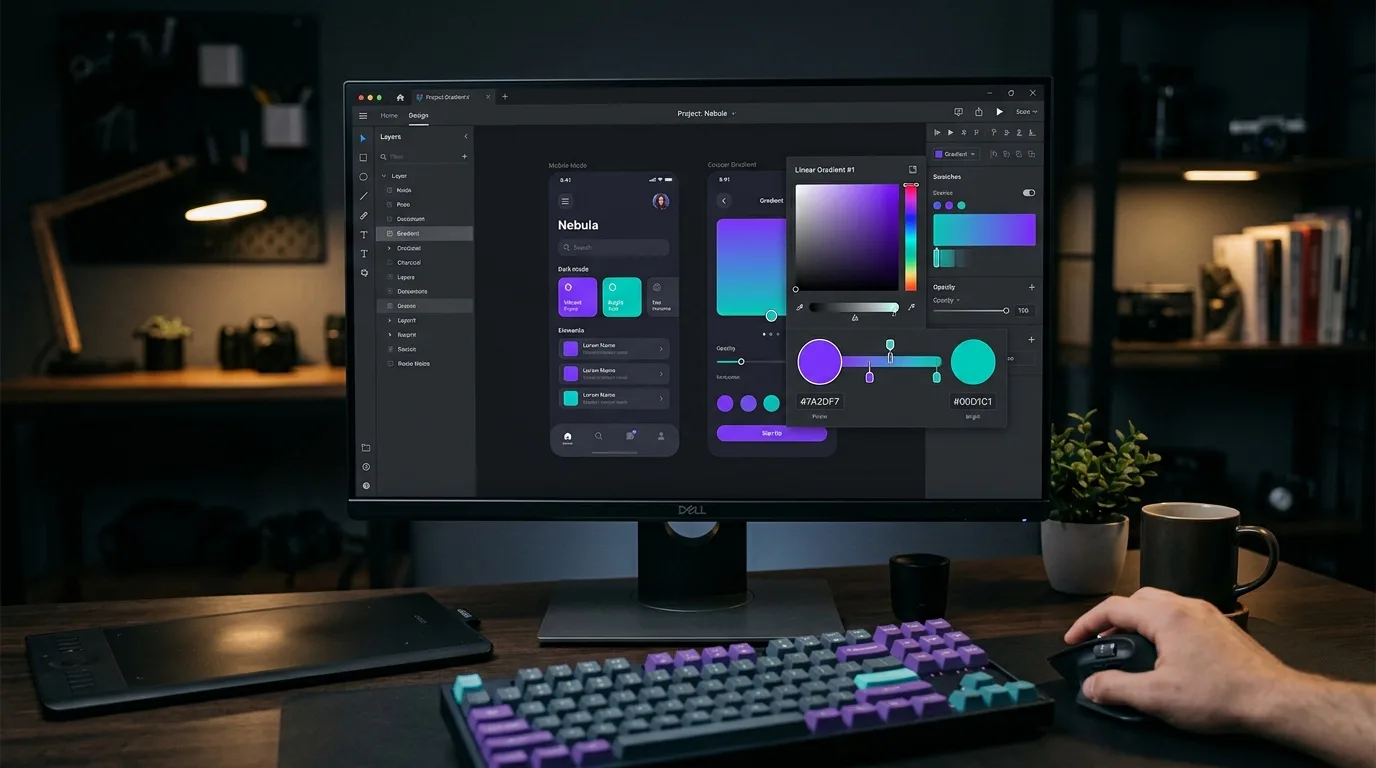
Developer working with gradient color picker in a design tool

# How to Convert Image Mockups into Clean CSS Gradients

Every design handoff includes at least one background that is a smooth color transition, a hero section fading from deep indigo to violet, a card overlay shifting from transparent black to opaque. The default approach is to export that background as a PNG or JPEG and reference it in CSS. That works, but it carries real costs: an extra HTTP request, kilobytes of image data, and a static asset that cannot respond to theme changes or viewport conditions. CSS gradients solve all three problems at once.

This guide walks through the full workflow: reading a gradient out of a design file or screenshot, translating it into precise CSS syntax, and validating the result against the original.

Why Replace Image Backgrounds with CSS Gradients

Before getting into the mechanics, it is worth being clear about what you gain.

Performance. A linear-gradient or radial-gradient declaration adds zero bytes to your network payload beyond the stylesheet itself. A comparable PNG thumbnail is typically 5, 30 KB. At scale across a product with dozens of gradient backgrounds, that difference is meaningful.

Scalability. CSS gradients scale to any resolution. A background image rendered at 1x looks soft on a 3x device unless you serve a retina asset. A CSS gradient is always crisp because the browser renders it natively at whatever density the display requires.

Maintainability. A gradient stored in a design token or CSS custom property can be updated in one place and propagated everywhere. A background image requires re-exporting, re-uploading, and cache-busting.

Reading the Gradient from a Mockup

The first step is to identify the color stops. Open the mockup in a design tool or load the exported image in any application that lets you sample pixel values.

Sample at a minimum of three positions along the gradient axis:

  • The starting point (or corner, for diagonal gradients)
  • The midpoint
  • The ending point

Record the hex or RGB value at each position. If the gradient is not linear, if it curves, fans out, or originates from a point, note the geometry as well.

Tools like Gradient Scanner automate this step. You upload an image, draw a line across the gradient axis, and the tool analyzes the pixel data along that path to produce the corresponding CSS syntax. For complex gradients with many subtle stops, this approach is significantly faster than manual sampling.

Writing the CSS

Once you have your color stops and geometry, the CSS is straightforward.

Linear Gradients

/* Two-stop horizontal gradient */
background: linear-gradient(to right, #1a1a2e, #e94560);

/* Multi-stop diagonal gradient */
background: linear-gradient(
  135deg,
  #0f0c29 0%,
  #302b63 50%,
  #24243e 100%
);

The angle can be expressed in degrees (135deg) or as a direction keyword (to bottom right). Degrees are more precise for non-cardinal directions. Zero degrees points upward; values increase clockwise.

Radial Gradients

/* Circular gradient centered in the element */
background: radial-gradient(circle at center, #f7971e 0%, #ffd200 100%);

/* Elliptical gradient offset to the top-left */
background: radial-gradient(ellipse at 20% 30%, #4facfe 0%, #00f2fe 100%);

The at keyword positions the gradient origin. This directly corresponds to the focal point you would identify when sampling the mockup.

Conic Gradients

For pie-chart-style or sweeping backgrounds, conic-gradient is the right tool:

background: conic-gradient(from 0deg at 50% 50%, #fc5c7d, #6a82fb, #fc5c7d);

Validating Against the Original

After writing the CSS, place the gradient declaration in a test element with the same dimensions as the original mockup region. Load both side by side in a browser, the original image in one pane, the CSS-rendered version in another.

Check:

  • Color accuracy at the start and end stops
  • Midpoint color and position
  • Edge behavior (does the gradient clip correctly to the container?)
  • Appearance at multiple screen densities if you have access to a high-DPI display or can use browser DevTools device emulation

If the midpoint color is off, add an explicit mid-stop:

background: linear-gradient(
  to right,
  #1a1a2e 0%,
  #4a3f6b 48%,   /* explicit midpoint correction */
  #e94560 100%
);

Small adjustments to stop positions, a percent or two in either direction, are usually enough to bring the CSS rendering in line with the original.

Integrating with a Design System

Once the gradient is validated, move it into your design token layer. In a plain CSS codebase, custom properties work well:

:root {
  -gradient-hero: linear-gradient(135deg, #0f0c29 0%, #302b63 50%, #24243e 100%);
  -gradient-card-overlay: linear-gradient(to bottom, transparent 0%, rgba(0,0,0,0.7) 100%);
}

.hero {
  background: var(-gradient-hero);
}

In a design token pipeline (Style Dictionary, Theo, or similar), store gradients as composite tokens with explicit stop arrays so they can be serialized to multiple output formats, CSS custom properties, iOS Swift, Android XML, from a single source of truth.

Common Pitfalls

Using `background-image` vs `background`. Both work, but background is shorthand that resets other background properties. If you need to combine a gradient with a background-size or background-position, use the longhand:

background-image: linear-gradient(135deg, #0f0c29, #24243e);
background-size: cover;

Forgetting the fallback. For contexts where CSS gradients might not render (email clients, very old embedded views), add a solid color fallback before the gradient:

background: #0f0c29; /* fallback */
background: linear-gradient(135deg, #0f0c29, #24243e);

Overcomplicating stops. Gradients extracted automatically from images sometimes include redundant stops that are nearly identical in color. Simplify to the minimum number of stops that reproduces the visual, this keeps the CSS readable and reduces the chance of banding artifacts on some rendering engines.

Summary

Replacing gradient background images with CSS is one of the higher-leverage optimizations available to a front-end developer. The performance gains are real, the result is more maintainable, and the workflow, sample, write, validate, tokenize, is repeatable across any project. Tools that automate the extraction step, such as Gradient Scanner, reduce the most tedious part of the process to a few seconds of work.

No.02PERFORMANCEMarch 15, 2026

02-replacing-background-images-with-css-for-performance

Abstract visualization of web performance and color spectrum

# Improving Web Performance by Replacing Background Images with CSS

Background images are among the most overlooked sources of page weight on production websites. They sit in the critical rendering path, they multiply with every responsive breakpoint, and they are often serving data that a CSS declaration could reproduce exactly, with zero bytes of additional network transfer. Gradient backgrounds are the clearest case where the trade-off favors CSS by a wide margin.

This article covers the performance argument in detail, the practical steps for auditing and migrating image-based gradients, and the edge cases where images still make sense.

The Performance Case

A single gradient background PNG on a full-width hero is commonly 15, 60 KB depending on dimensions and color complexity. On a page with multiple gradient regions, hero, section dividers, card overlays, that can accumulate to 100, 200 KB of image data before the browser has rendered any meaningful content.

CSS gradients, by contrast, are rendered entirely by the GPU using values already present in the stylesheet. The cost is effectively zero in terms of network bytes and negligible in terms of render time. The browser computes the gradient geometry and paints it in the same pass as all other CSS backgrounds.

The impact shows up directly in Core Web Vitals:

  • Largest Contentful Paint (LCP): If the LCP element has a background image, that image is in the critical path. Replacing it with CSS removes the dependency entirely.
  • Total Blocking Time (TBT): Fewer image requests means the main thread is less occupied with decode operations during page load.
  • Cumulative Layout Shift (CLS): Background images set with background-image in CSS do not reserve space the way <img> elements do, but they can contribute to layout instability if loaded asynchronously and their container has no explicit dimensions.

Auditing Your Site for Image-Based Gradients

Start by pulling a list of all background image declarations from your stylesheets. A quick grep works in most codebases:

grep -r "background.*url(" src/styles/ -include="*.css" -include="*.scss"

For each result, open the referenced image and assess it visually. If it is a smooth transition between two or more colors with no texture, photographic content, or pattern, it is a candidate for CSS replacement.

Browser DevTools also helps here. In Chrome, open the Network panel, filter by Img type, and sort by size. Any large image that, when previewed, turns out to be a gradient is a candidate.

Migration Workflow

Step 1: Extract the Color Stops

For each candidate image, you need the color values at the gradient's start, midpoint, and end (and any additional stops if the transition is non-uniform).

A color picker tool works for simple two-stop gradients. For gradients with subtle multi-stop progressions, use a dedicated extraction utility. Gradient Scanner accepts an image upload, lets you trace a line along the gradient axis, and outputs the CSS syntax with sampled stops, significantly faster than manual pixel inspection for gradients with five or more color stops.

Step 2: Write the CSS Replacement

/* Before: image-based */
.hero {
  background-image: url('/assets/hero-gradient.png');
  background-size: cover;
}

/* After: pure CSS */
.hero {
  background: linear-gradient(160deg, #0d1b2a 0%, #1b4332 55%, #081c15 100%);
}

Verify the geometry matches. A gradient that fans out from a corner requires radial-gradient or an angled linear-gradient. A gradient that appears to sweep around a center point is a candidate for conic-gradient.

Step 3: Validate Visually

Side-by-side comparison is the reliable method. Open the before and after states in the same browser at the same viewport width. Check at multiple breakpoints, the CSS gradient will naturally fill any container size, but the original image may have been cropped or scaled differently at small viewports.

Step 4: Remove the Image Asset

Once the CSS replacement is validated, delete the image file from your asset pipeline and remove any srcset, <picture>, or media query variants that served different resolutions of the same gradient.

This cleanup step matters. Orphaned assets in a CDN continue to occupy storage and can confuse future contributors who assume they are still in use.

Handling Responsive Complexity

A common reason developers keep background images is that the gradient behavior changes across breakpoints. For example, a gradient might be horizontal on desktop and vertical on mobile.

CSS handles this natively with media queries:

.section-bg {
  background: linear-gradient(to bottom, #1a1a2e, #16213e);
}

@media (min-width: 768px) {
  .section-bg {
    background: linear-gradient(to right, #1a1a2e, #16213e);
  }
}

There is no need for separate image assets per breakpoint. The direction keyword or angle value is all that changes.

Edge Cases Where Images Still Make Sense

CSS gradients are not always the right answer. Keep images when:

  • The background includes photographic content, blended imagery, texture overlays, or noise cannot be reproduced with CSS gradient syntax alone.
  • The gradient uses a custom curve, CSS gradients interpolate linearly between stops. If the original design uses a custom easing curve (common in high-end motion design work), the CSS approximation may require so many stops that it becomes harder to maintain than the source image.
  • The background is part of a complex composited effect, multiple blend modes, masks, and pseudo-element layers may be more straightforward to implement with a pre-rendered image.

In those cases, keep the image but audit its format. A gradient-heavy background exported as WebP or AVIF is typically 40, 70% smaller than the same content as PNG.

Measuring the Impact

After migration, re-run Lighthouse or PageSpeed Insights on any page where you replaced gradient images. Look at:

  • Render-Blocking Resources: The image requests should no longer appear.
  • Serve Images in Next-Gen Formats: The finding should disappear for assets you removed entirely.
  • Total Page Weight: The Transferred column in the Network panel should reflect the reduction.

On pages with multiple gradient regions, a full migration commonly yields 80, 150 KB of weight reduction and measurable LCP improvements, particularly on mobile connections where image latency is most pronounced.

Summary

The workflow is consistent: audit for gradient images, extract color stops, write the CSS equivalent, validate visually, and remove the original asset. Each replaced image is a permanent performance win, no infrastructure changes, no third-party dependencies, just cleaner CSS and faster pages.


No.03SYNTAX REFERENCEFebruary 22, 2026

03-mastering-css3-gradient-syntax

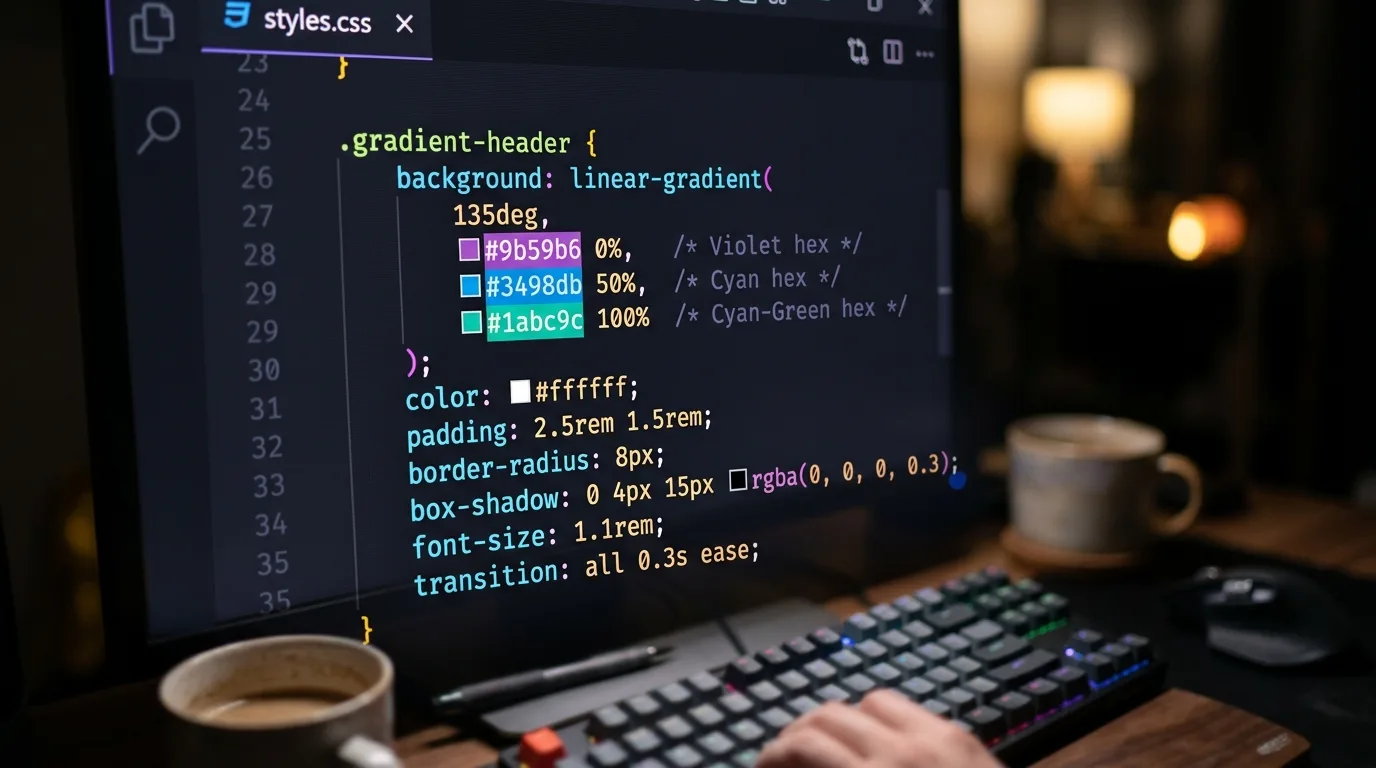
CSS code with gradient syntax highlighted in a dark editor

# A Guide to Mastering Complex CSS3 Gradient Syntax

CSS gradients have been production-stable since CSS3, but most codebases use only a fraction of the available syntax. Two-stop linear-gradient declarations cover the common cases, but complex design work, mesh-like backgrounds, conical sweeps, hard-edged stripe patterns, perceptually smooth color transitions, requires a deeper understanding of the full specification. This guide covers the complete syntax across all three gradient functions, with code examples that demonstrate the less-used features practitioners encounter when replicating production designs.

The Three Gradient Functions

CSS provides three main gradient functions:

  • linear-gradient(), color stops along a straight line at a specified angle
  • radial-gradient(), color stops radiating outward from a focal point
  • conic-gradient(), color stops sweeping around a center point in an arc

Each has a repeating- variant (repeating-linear-gradient, repeating-radial-gradient, repeating-conic-gradient) that tiles the gradient pattern across the element.

Linear Gradient: Full Syntax

linear-gradient( [ <angle> | to <side-or-corner> ], <color-stop-list> )

Angle Values

The angle controls the direction of the gradient line. 0deg is upward (toward the top edge); values increase clockwise.

/* Equivalent: both render a top-to-bottom gradient */
background: linear-gradient(180deg, #1a1a2e, #e94560);
background: linear-gradient(to bottom, #1a1a2e, #e94560);

/* 45-degree diagonal */
background: linear-gradient(45deg, #1a1a2e, #e94560);

/* Precise non-cardinal angle */
background: linear-gradient(112.5deg, #0f0c29, #302b63, #24243e);

When replicating a gradient extracted from an image using a tool like Gradient Scanner, the angle output will typically be in degrees rather than directional keywords, which is the more precise form.

Color Stop Positions

Stop positions can be expressed as percentages, absolute lengths, or omitted entirely (the browser distributes them evenly).

/* Evenly distributed, browser calculates positions */
background: linear-gradient(to right, #f7971e, #ffd200, #f7971e);

/* Explicit percentage positions */
background: linear-gradient(
  to right,
  #f7971e 0%,
  #ffd200 30%,   /* skewed toward the left */
  #f7971e 100%
);

/* Absolute length positions */
background: linear-gradient(
  to right,
  #1a1a2e 0px,
  #e94560 200px
);

Color Hints (Midpoint Adjustment)

A single value between two color stops, with no color attached, is a color hint. It shifts the midpoint of the interpolation without adding a new discrete stop.

/* Default midpoint at 50% between stops */
background: linear-gradient(to right, #1a1a2e, #e94560);

/* Midpoint shifted to 25%, transition accelerates sooner */
background: linear-gradient(to right, #1a1a2e, 25%, #e94560);

Color hints are useful when replicating gradients that appear to ease in or out, rather than progressing linearly. They are one of the first tools to reach for when a two-stop CSS gradient does not match the original design.

Hard Stops (Stripe Patterns)

When two consecutive stops share the same position, the transition is instantaneous, producing a hard edge. This enables stripe patterns without any image assets:

/* Three equal stripes */
background: linear-gradient(
  to right,
  #e94560 0%,   #e94560 33.33%,
  #0f3460 33.33%, #0f3460 66.66%,
  #16213e 66.66%, #16213e 100%
);

/* Diagonal stripes using repeating variant */
background: repeating-linear-gradient(
  45deg,
  #1a1a2e,
  #1a1a2e 10px,
  #16213e 10px,
  #16213e 20px
);

Radial Gradient: Full Syntax

radial-gradient( [ <ending-shape> || <size> ] [ at <position> ]?, <color-stop-list> )

Shape and Size

The ending shape is either circle or ellipse. If omitted, the browser infers the shape from the element's aspect ratio.

The size keyword controls how far the gradient extends:

  • closest-side, stops at the nearest edge of the box
  • farthest-side, extends to the farthest edge
  • closest-corner, stops at the nearest corner
  • farthest-corner, extends to the farthest corner (the default)
/* Circle contained within the nearest edge */
background: radial-gradient(circle closest-side at 50% 50%, #fc5c7d, #6a82fb);

/* Ellipse at a custom position */
background: radial-gradient(ellipse farthest-corner at 20% 30%, #4facfe 0%, #00f2fe 100%);

Explicit Size Values

Instead of keywords, you can provide explicit size values:

/* Circle with a fixed 200px radius */
background: radial-gradient(circle 200px at center, #f7971e, transparent);

/* Ellipse with explicit horizontal and vertical radii */
background: radial-gradient(ellipse 60% 40% at 50% 50%, #302b63, #0f0c29);

This level of control is important when replicating extracted gradients where the focal point and falloff are precisely defined.

Conic Gradient: Full Syntax

conic-gradient( [ from <angle> ]? [ at <position> ]?, <color-stop-list> )

conic-gradient sweeps color stops around a center point. The stops are placed at angular positions rather than linear or radial distances.

/* Simple two-color sweep starting from the top */
background: conic-gradient(from 0deg, #fc5c7d, #6a82fb, #fc5c7d);

/* Pie chart approximation */
background: conic-gradient(
  #e94560 0deg 120deg,
  #0f3460 120deg 240deg,
  #16213e 240deg 360deg
);

/* Hard-stop pie with center offset */
background: conic-gradient(
  from 90deg at 40% 60%,
  #f7971e 0deg 90deg,
  #ffd200 90deg 180deg,
  #f7971e 180deg 360deg
);

Color Interpolation Color Spaces

Modern browsers support the in <colorspace> syntax for controlling how the browser interpolates between stops. This is a significant addition that affects perceived gradient smoothness.

/* Default sRGB interpolation (can produce grey muddy midpoints) */
background: linear-gradient(to right, hsl(0 100% 50%), hsl(240 100% 50%));

/* OKLCH interpolation, perceptually uniform, avoids grey midpoints */
background: linear-gradient(in oklch to right, hsl(0 100% 50%), hsl(240 100% 50%));

/* Display-p3 for wide-gamut displays */
background: linear-gradient(in display-p3 to right, #ff0000, #0000ff);

OKLCH interpolation is the most practically useful option. It prevents the washed-out grey band that commonly appears at the midpoint of high-saturation complementary color gradients. When replicating a gradient from an image that looks vivid across its full range, switching to oklch interpolation is often the fix if a straight sRGB interpolation looks dull.

Layering Multiple Gradients

The background property accepts a comma-separated list of layers, painted from top to bottom. This enables multi-layer gradient compositions without pseudo-elements:

.mesh-bg {
  background:
    radial-gradient(ellipse at 20% 20%, rgba(249, 115, 22, 0.4) 0%, transparent 60%),
    radial-gradient(ellipse at 80% 80%, rgba(99, 102, 241, 0.4) 0%, transparent 60%),
    radial-gradient(ellipse at 50% 50%, rgba(16, 185, 129, 0.3) 0%, transparent 70%),
    #0f0c29;
}

The final value (#0f0c29) is a solid color fallback that shows through all transparent regions.

Practical Reference: Extracting Angles from Image Gradients

When working backward from a design file or screenshot, the angle is the hardest value to determine visually. The relationship between degree value and visual direction follows this convention:

| Degree | Visual Direction | |----|---------| | 0deg | Bottom to top | | 45deg | Bottom-left to top-right | | 90deg | Left to right | | 135deg | Top-left to bottom-right | | 180deg | Top to bottom |

Tools like Gradient Scanner compute the angle automatically from the traced path across an image, which eliminates guesswork when the gradient is at a non-standard angle.

Summary

The full CSS gradient specification supports hard stops, color hints, explicit focal geometries, size keywords, angular sweeps, multi-layer compositions, and perceptually uniform color space interpolation. Each feature addresses a specific class of design, from striped patterns to mesh backgrounds to vivid complementary transitions. Knowing which tool applies to which problem is what separates a maintainable, image-free stylesheet from one that reaches for a PNG every time the design gets complex.